
Starlie help
A little help getting started.
Connect Jira, find your work, and make yourself at home.
Connect your first Jira site.
Download the app, connect your Jira site, and open your first issue.
-
1
Install Starlie from the Mac App Store
Go to the Mac App Store and install the app. It works with Jira Cloud and self-hosted Jira instances, and requires macOS 15 or later.
-
2
Open the app
After installation, open it from Launchpad or Spotlight.
-
3
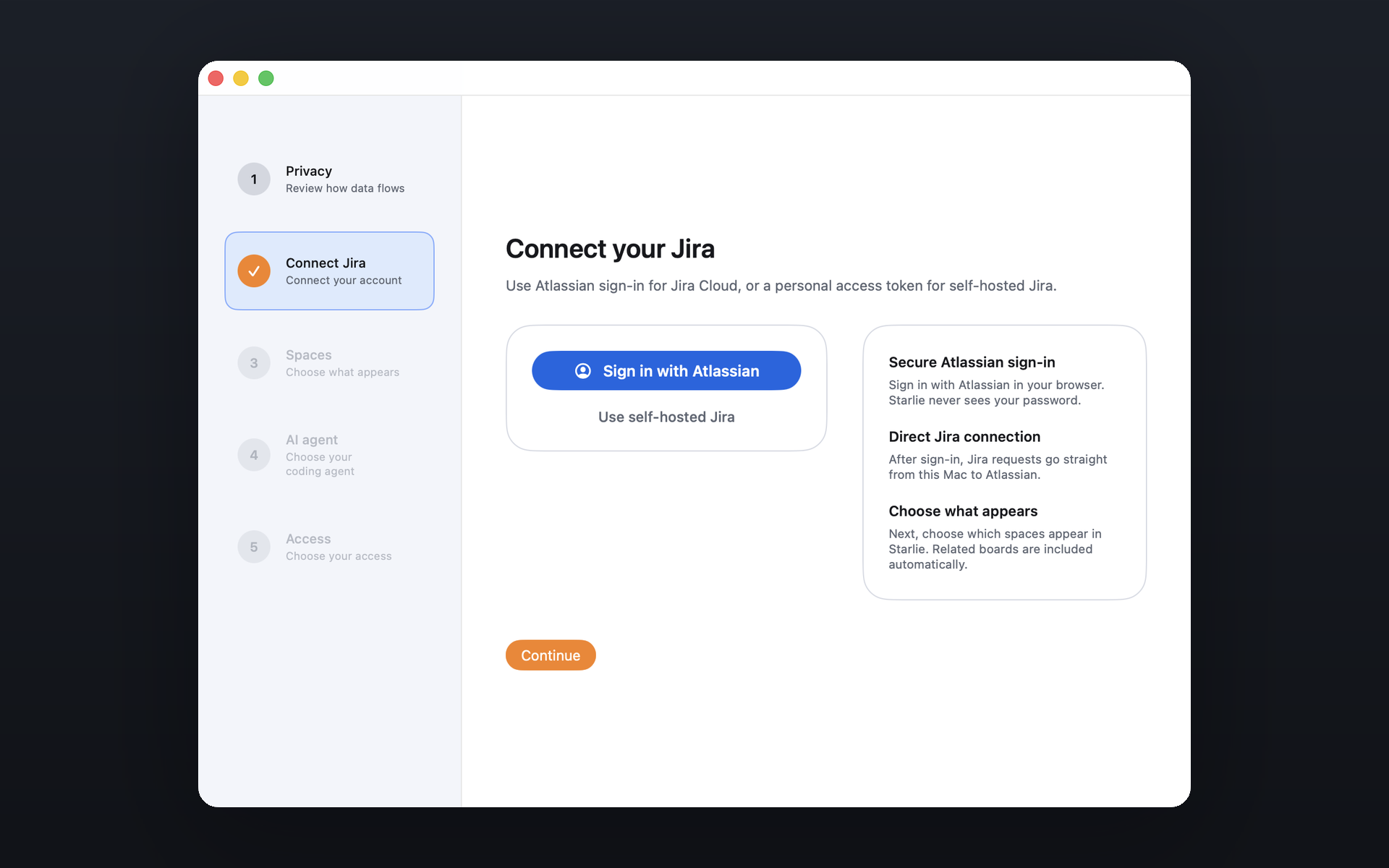
Connect your Jira site
Follow the prompts in the app. For Jira Cloud, your browser opens Atlassian's secure sign-in page. Your password stays with Atlassian, and the macOS Keychain stores your tokens.
-
4
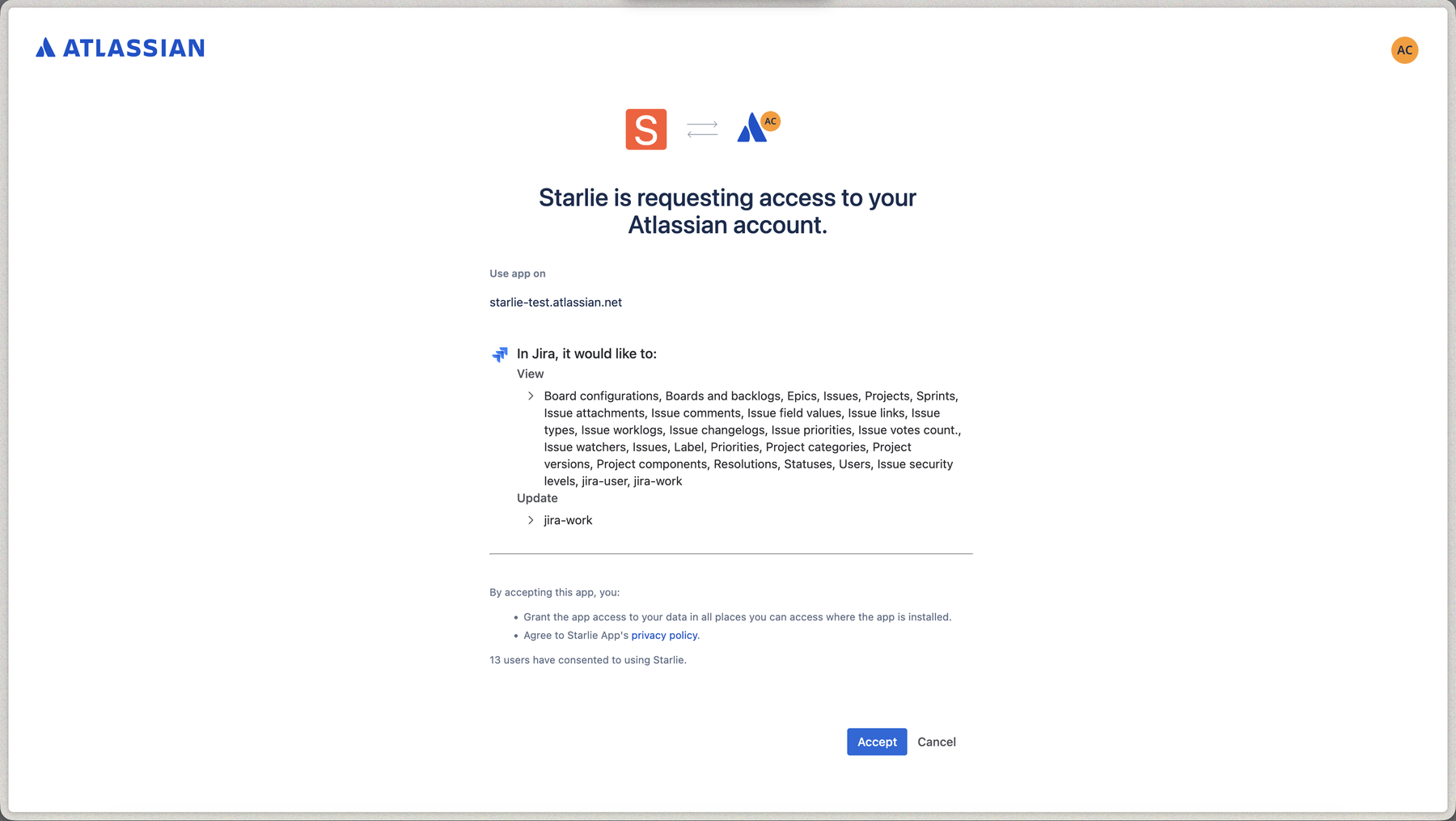
Finish connecting
For Jira Cloud, review the requested access and choose the site you want to connect. Atlassian will return you to the app. For a self-hosted instance, follow the connection steps in the app.
-
5
Start working
Your projects load after sign-in. Choose one in the sidebar, or press ⌘K and enter an issue key or search terms to find what you need.
Work with Jira from your Mac
Jump anywhere
Press ⌘K and enter an issue key, summary, or project. Press Return to open the result.
Browse your backlog
Pick a project or a saved Space in the sidebar. The list shows the type, status, priority, and assignee for each issue.
Work with issues
Open an issue to see its description, subtasks, and comments. Change the status, assignee, or priority from the detail view or from the list's context menu.
Search with JQL
Use full JQL in advanced search. Autocomplete suggests fields, operators, and values as you type, while syntax highlighting keeps the query readable.
Run your sprint
Open the active sprint in board view and drag cards between columns. Changes sync to Jira instantly.
See the big picture
Outline shows epics, stories, and subtasks across projects in one tree. Group and sort the results, or narrow them with JQL.
Troubleshooting
- The sign-in window doesn't appear. Make sure a default browser is set in macOS System Settings, then try signing in again.
- The app won't install. macOS 15 (Sequoia) or later is required. Check your macOS version in About This Mac.
- Connected to the wrong Jira site. Sign out in Settings, then sign in again and choose the correct site during authorization.
Still stuck? Email support@starlie.app for help.